Built for the floor. Not for the boardroom.
Every module answers the question a plant manager asks at 6 AM: where are we behind, and who's on it? The SQDC board, hour-by-hour, 3C and A3, scrap and Pareto come with every plan, Free included.
On this page
- SQDC boardSafety, Quality, Delivery and Cost against targetEvery plan
- Hour-by-hourPlan vs actual every hour, with the running gapEvery plan
- Issues and 3CFrom the board to a fix, with an owner and a dateEvery plan
- A3 problem solvingFor the problem the 3C didn't fixEvery plan
- Scrap trackingEvery scrapped part, by reason and costEvery plan
- Pareto and trendsWhich parts and reasons cost the mostEvery plan
- Departments and roll-upCells under departments, one view of the plantEvery plan · 1 department on Free
- Wall displayThe board on a TV at the cellEvery plan
- AI Lean CoachCoaching on 3Cs and A3sProfessional and up
SQDC board
Each cell gets Safety, Quality, Delivery and Cost on one board, with the gap to target on every card. The month view colors each day, so a red streak shows before it becomes a habit.
- Green, yellow and red, plus a check or ! on every card
- Quality and Delivery targets set per cell
- Log an issue straight from a red day
- Trend charts by week, month, quarter and year, and a printable monthly report
Hour-by-hour
Plan and actual for every hour of the shift. Under 90% of plan turns the hour red, and the Cumulative Δ row keeps the running gap, so a miss at 9 shows at 10, not at the end of the shift.
- Save a default plan once; Apply Schedule fills in the day
- Each shift on a cell gets its own plan and actuals
- Operators enter the hour's actual right on the cell's wall screen
- CSV import for lines not on the system yet
Issues and 3C
Log the problem from the board. A supervisor turns it into a 3C: concern, cause, countermeasure, due date. Countermeasures land on the Actions list with an owner and a date, and late ones show in red.
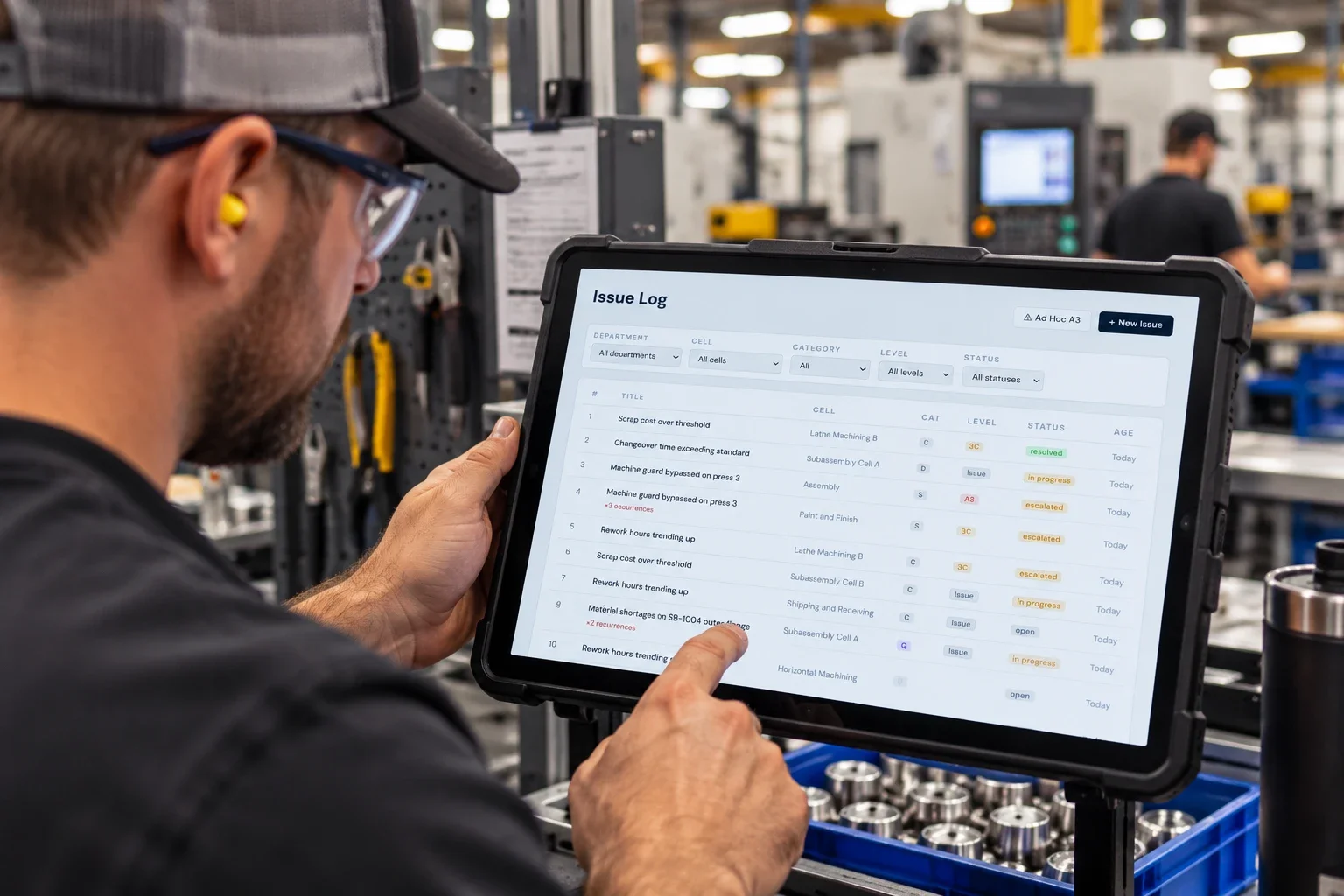
- Issue log by cell, category, level, status and age
- Link a repeat and the recurrence count goes up
- Escalate to an A3 in one click when the 3C doesn't hold
- The facility board counts what's open, at 3C and at A3
A3 problem solving
For the problem the 3C didn't fix. The A3 opens with the issue, the 3C concern, the repeat count and the last 60 days of that metric already filled in. Your team works it through to a fix that holds.
- Fishbone on the 6Ms, and a 5-Why chain for each confirmed cause
- Countermeasures and an implementation plan with owners and due dates
- Follow-up reviews to check the fix held
- Presenter view for the review meeting; export to PDF or PowerPoint
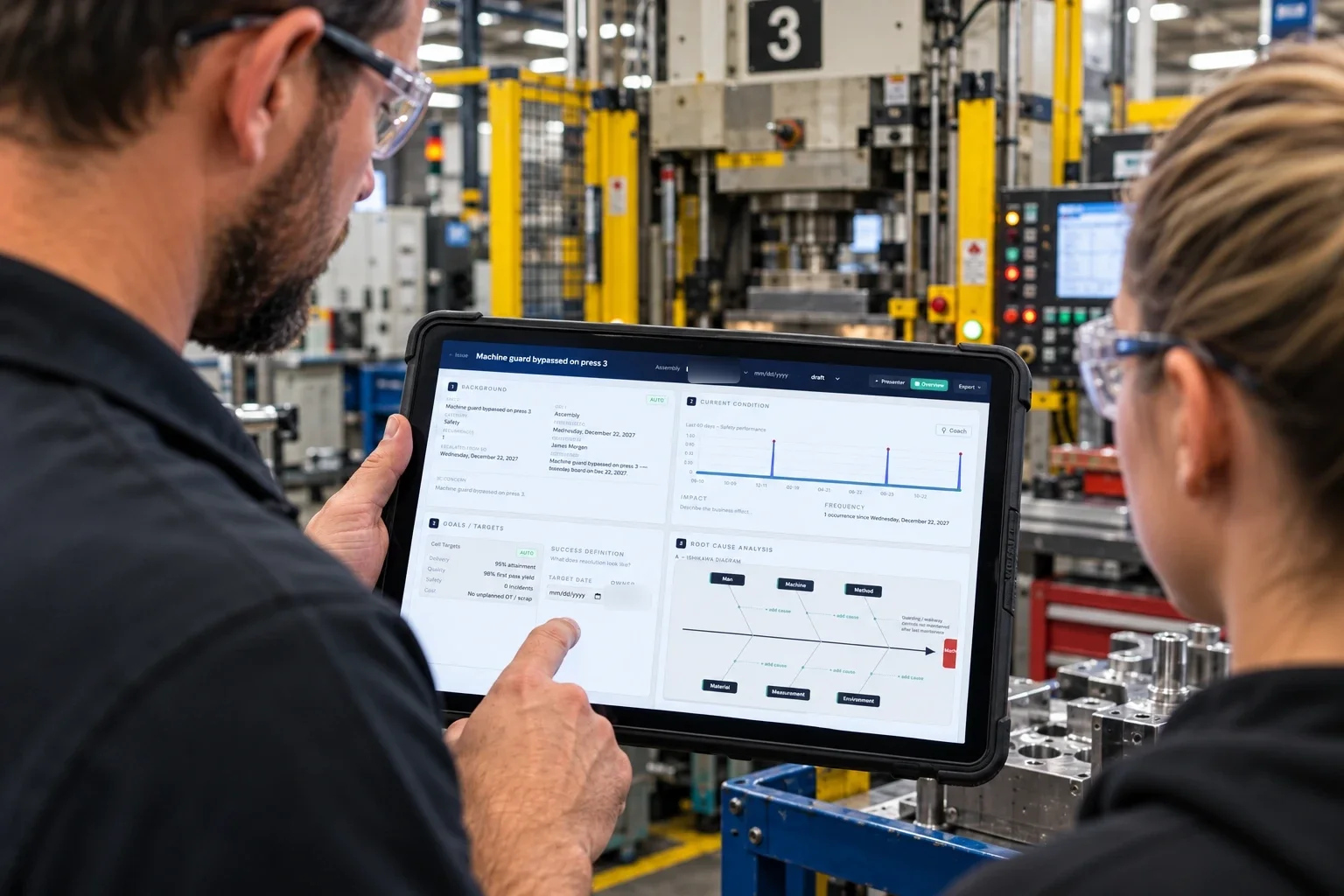
The seven sections
- Background
- Current condition
- Goals and targets
- Root cause analysis
- Countermeasures
- Implementation plan
- Follow-up and verification
Scrap tracking
Every scrapped part logged with part number, quantity, reason, disposition and cost. Pick the part from your list and the cost fills in. No end-of-month surprise when someone adds up the bin.
- Seven reason codes, from Machine and Tooling to Incoming
- Dispositions: scrapped, rework, return to supplier, use as-is
- Shift and cell on every entry
- Start an A3 straight from a scrap row
Pareto and trends
Scrap dollars ranked by reason and by part number, with a cumulative line, so the few causes behind most of the cost sit at the top. Filter by week, month, quarter or year to date, and by department or cell.
- Click a reason to see the part numbers behind it
- SQDC trends by week, month, quarter and year
- A monthly report you can print or save as PDF
Departments and roll-up
Set up the floor the way it runs: cells under departments, shifts per cell, and a role for each person. The facility board shows every department's cells, what's red, and what's open at 3C and A3.
- Department board with each cell's S, Q, D, C, issues and hour-by-hour
- Operator, supervisor and manager roles decide who escalates and who edits
- Unlimited departments and cells on Professional
Wall display
Switch any cell or department board to Wall and it fills a TV on the floor: big numbers, the hour-by-hour, open issues. The header says how many metrics are off target, so the line can read it from across the cell.
- Cards and issues refresh every minute, and the mouse hides
- Operators tap an hour to log the actual
- Runs in a browser on any computer plugged into the TV
AI Lean Coach
The AI Lean Coach runs on Claude and sits inside your 3C and A3 forms. It reads the issue, the cell's recent SQDC results and how similar issues on that cell were fixed, then asks the next question a good lean coach would ask. It doesn't fill in the answers for your team.
- Pushes back when a cause names a person instead of a process
- Checks a finished 5-Why chain for gaps in the logic
- Checks countermeasures against the root cause and past fixes on the same cell
- Points out when an issue has come back before
Where it shows up
- Coach, on a 3C’s concern, cause and countermeasure, and on an A3’s current condition
- Coach my fishbone
- Check my 5-Why
- Coach countermeasures
- Review my A3
It sends nothing until someone clicks one of these.
Enter the numbers at the cell, on a tablet or PC
ShopBoard runs in the browser, with nothing to install. Plan on a tablet or a PC at the cell. A phone can do the entry, but it’s cramped.
Hour-by-hour from the cell
Tap an hour that has started, type the actual and tap ✓. The hour turns green, amber or red and the Cumulative Δ row updates. Hours that haven’t started stay locked. From 1024 pixels wide an 8-hour shift fits; narrower, you slide the grid.
The day’s SQDC numbers
Tap the day on the month calendar, then Edit (or + Add data) on the Safety, Quality or Delivery card. Type the target and actual and save; the board works out the color. Cost has no Edit: it fills in from the scrap you log.
Issues and scrap
+ Log issue on any SQDC card opens a short form: category, title and notes. + Scrap opens the scrap form with the cell filled in. Pick the part from the catalog and its unit cost fills in.
A touchscreen as the cell’s board
Switch the cell board to Wall on a landscape screen of about 1180 by 820 or bigger, like a TV or a tablet turned sideways. Tap a slot to log the hour, or tap + Scrap. SQDC numbers and issues go in from the normal view.
What doesn’t work well yet
- Phones are cramped. At 640 pixels wide and under, the side menu is hidden and nothing replaces it.
- Tap targets in the normal view are small, 15 to 29 pixels tall. They’re not built for gloves. Wall view’s header buttons are at least 56 pixels, but the hour slots you tap are still 28 pixels tall.
- There’s no app in the App Store or Google Play. It’s a web page.
- No offline mode. An hour-by-hour save says when it fails, but SQDC and scrap saves don’t. If the connection drops, one of those can look done and not stick.
- No live push between screens. An hour typed on a tablet shows on the cell’s TV after a reload; a department wall picks it up within a minute.
- Checked in Chrome’s phone and tablet modes on the demo board, not yet on real phones or tablets.
See it working on your floor.
Start free with 1 department, 2 cells, 1 user and every core module. No card, no time limit.